The Document collection (DCC) application
The Document Collection application is a central place for creating and managing reusable list of documents. A document collection represents a predefined set of documents together with their competency-related configuration, which can be assigned to one or more Competence Profiles. Collections are typically used to group documents that share a common purpose, such as documents required for a specific task, activity, or work process. This approach helps organize competency requirements consistently and simplifies competence management across the organization.
Search field, filter builder and column settings
The header contains multiple options to filter the list:
Document collection area
The table below describes the columns and function of the document collection area.
Fields | Icon | Description |
|---|---|---|
Status |
| Status 4 - Active. Status 9 - Archived. |
Id* | Displays the document collection's identification number. | |
Title | Displays the title of the document collection. | |
Documents | Displays the number of documents in the document collection. | |
Profiles | Displays the number of Competence profiles in the document collection. | |
Description* | Displays an optional description of the document collection. |


Note
Fields marked with an asterisk (*) are hidden columns. To make these fields visible, click the Column settings icon, hover over Columns and select the desired columns to make them visible.
Create new document collection button
Add a title and optional description. Click Create to create document collection.
The document collection will be listed in the Create new document collection area.
Document collection details
The document collection details area is where the user can edit the contents of a document collection. Each document collection has its own identification number (e.g. DCC/100432). This is visible in the top right corner of the Document collection details area.
This area includes two tabs: the Documents tab and the Competence profiles tab.
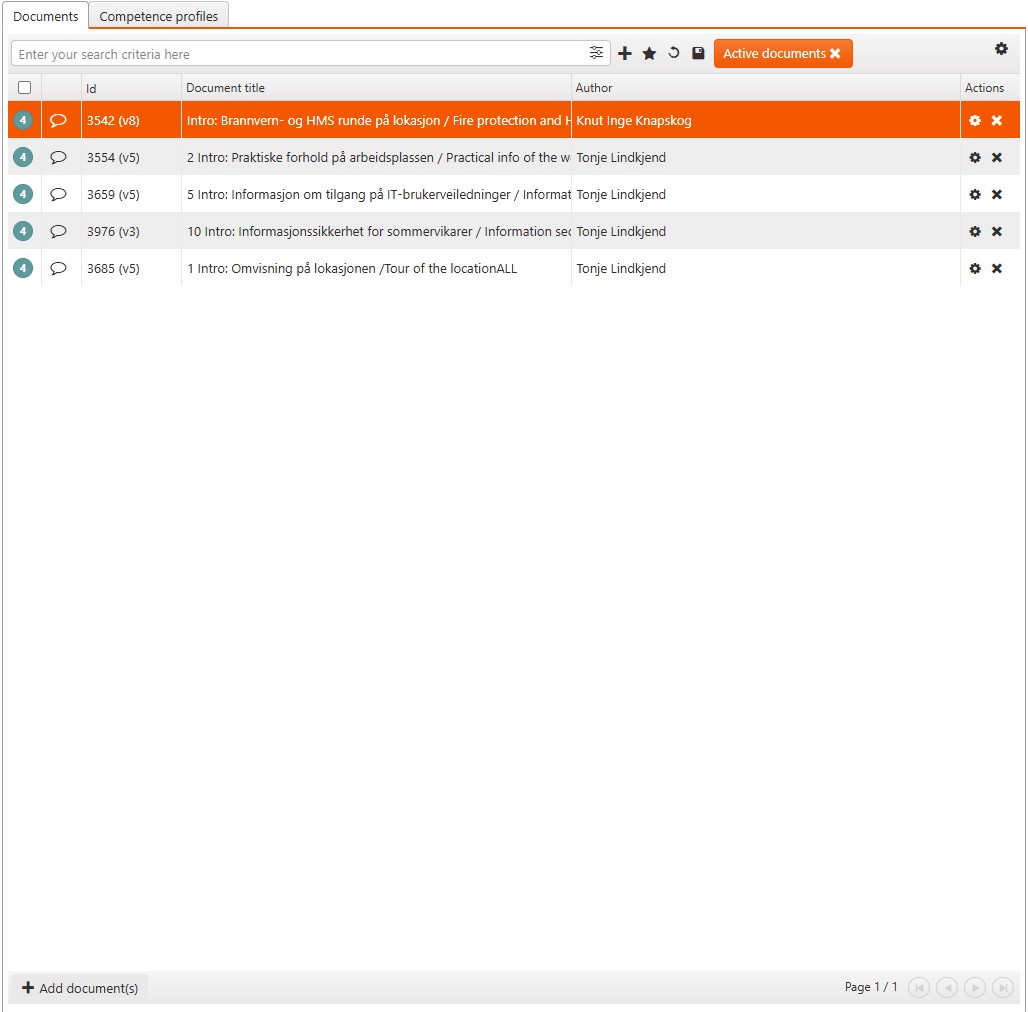
The Documents tab
The Documents tab displays documents and relevant information about the the documents in the document collection.
Custom filters for searching can be built by clicking the Filter builder icon. To customized the viewed columns, click the Column settings icon and check the intended checkboxes.
Column | Icon | Description |
|---|---|---|
| The status icon acts as an option to select or multi-select documents for deleting. Click the status icon. Then click Clear selected items (#) in the top right corner to delete the selected document(s). Status 4 - Active. Status 9 - Deactivated. | |
| Displays a symbol representing the type of document:
| |
Id | Displays the identification number and version of the document. | |
Document title | Displays the title of the document | |
Author | Displays the author of the document. | |
Added At* | Displays the date and time the document was added to the document collection. | |
Deactivated At* | Displays the date and time the document was deactivated. | |
Actions |
|
|





Add Document(s) button
Left side - Folder Tree
This area displays all the folder trees in the documents library. Click here to read more about the folder tree.
Right side - Add Documents
Toggle on the Only approved option to display only approved documents. Use the Search documents search bar to search through the documents in the selected folder. Click the Cancel button to discard any changes. Click the Settings button to set a Read within date, Read frequency, and a Cosign requirement. Check the Notify by mail box to notify the assigned users of the changes made. Click the Add document(s) button to add the documents to the document collection.
The Competence profiles tab
The Competence profiles tab displays all competence profiles linked to a document collection. Custom filters for searching can be built by clicking the Filter builder icon. To customize the viewed columns, click the Column settings icon and select the desired columns.
Column | Icon | Description |
|---|---|---|
Status |
| Displays the status of the competence profile. |
Name | Displays the name of the competence profile. | |
Organizational Unit | Displays the organizational unit the competence profile belongs to. | |
Added at* | Displays the date the competence profile was added to the document collection. | |
Deactivated at* | Displays the date the competence profile was [removed?] from the document collection. | |
| Deactivate button. |
Add competence profile(s) button
Left side
Navigate through the organizational unit tree to find and select one or multiple competence profiles. The selected competence profiles are bolded.
Use the Enter your search criteria here search bar to quickly search through organizational units.
Toggle on the Include archived profiles option to include archived profiles in your search.
Right side
The selected competence profiles are listed Under Competence Profile. Click the X next to the Competence profile to remove it from the list. Use the Search units search bar to search quickly through the list of selected competence profiles.
Click the Settings button to notify the associated users of the changes made. Set a Read within date, a Read frequency, and Cosign requirement.
Click the Add competence profile(s) button to add the competence profiles to the Document collection.
Click the Cancel button to discard the changes.
Context Menu Options
Detailed export to Excel
Clicking this option will export a report displaying competence profiles per document collection.
Revision history
Fields | |
|---|---|
Field | Displays what aspect of the document collection was changed. The fields displayed include:
|
Change item | Identifying information of the item. Documents are referenced by the prefix DCC-T1. Profiles are referenced by the prefix DCC-T2. |
Old value | Displays the previous value of the field. |
New value | Displays the updated value of the field. |
User | Displays the updated value of the field. |
Date | Displays the date and time the change was made. |
Archive
Document archives can be archived by clicking the Archive button. When a document collection is archived, the relationship it has to any competence profiles will also be archived.
Copy document collection
Click the Copy document collection option to copy the selected document collection. Copying a document collection only copies the associated documents, not the associated competence profiles. If a document collection is copied, competence profiles must be manually re-added to the copied version of a document collection.
Restore
In the document collection list on the left side of the application, select an archived document collection. In the top right corner, click the Restore option. In the pop-up window, click the Restore button.