Competence status and the competence workflow
Users need to confirm that they have read and understood the documents added to their competence profiles. Every document has a deadline that it should be read or completed within. Reading all assigned documents on time ensures that the users have a clear understanding of their responsibilities. This is called the Competence process.
The table below describes the four reading statuses available.
Document reading status | Description |
|---|---|
Green | Document has been read. |
Blue | Document has been read but requires co-signing. |
Yellow | Document has not been read and the expiration date is approaching. |
Red | Document was not read before the expiration date. |
All documents start with a yellow status. The competence workflows are demonstrated in the diagram below:
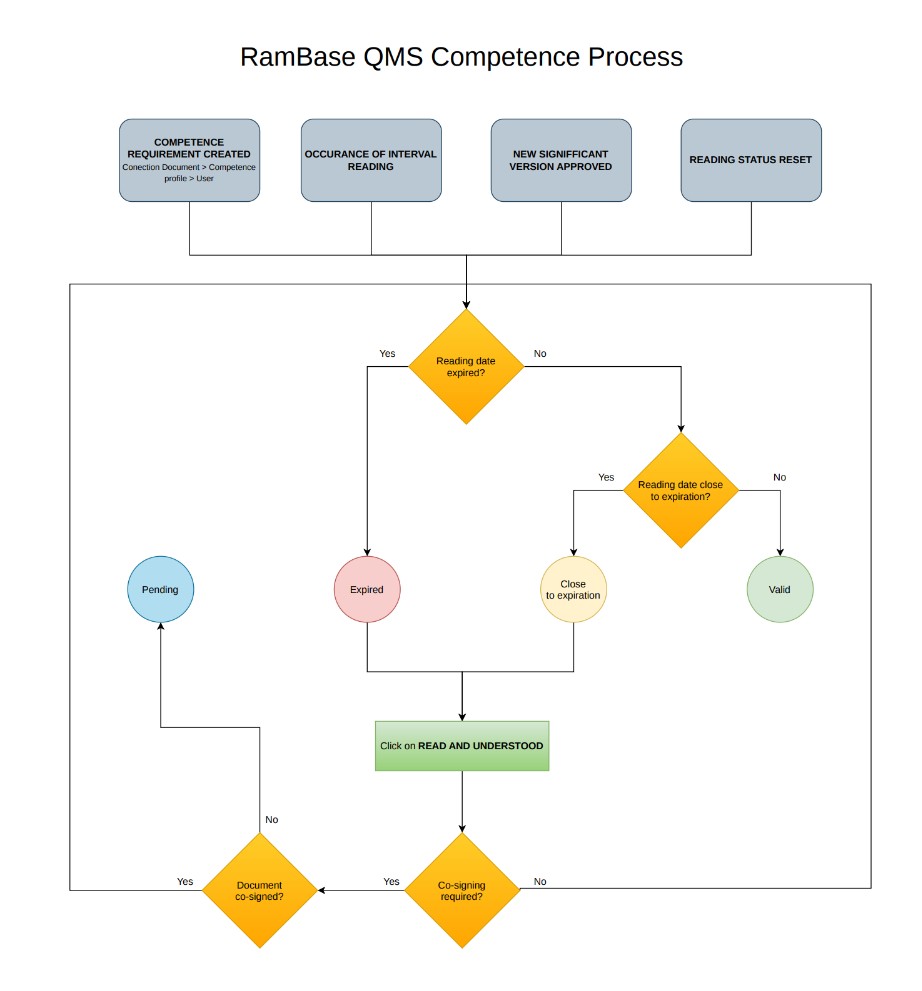
If a document is close to expiration, the status will also appear yellow. Documents marked as yellow are found in the Need to read folder under the My documents tab in the Document control management (DCM) application.
If a document has been read before the expiration deadline, the status is marked green. Documents marked as green can be found in the Read by me folder.
If a document has not been read before the expiration deadline, the status is marked red. Expired documents are easily marked as green immediately after they are read. The document will then be moved from the Need to Read folder to the Read by me folder.
If a document needs to be read multiple times, for example because a new version was created or there is a 'read frequency' set for it, the document will move from the Read by me folder back to the Need to read folder. The status of documents with a read frequency are automatically reset from green to yellow. If a new version of a document is made, then a notification will be sent to the assigned users for the new version. When creating a new version of a document, it is possible to change the read within date and the read frequency if needed.
A competence status will be marked as yellow when there are documents close to expiration. The competence status will remain yellow until all documents close to expiration are read. If there is an expired document in your competence profile, the competence status will be marked as red. The competence status will remain red until the expired documents in that competence profile, are read. Once all the documents are read and marked with green status, the competence status will also be marked as green.
An overview of the competence reading status can be found in the My competence profile tab in the Document control management (DCM) application.