Quiz edit view (QUIZ)
Overview
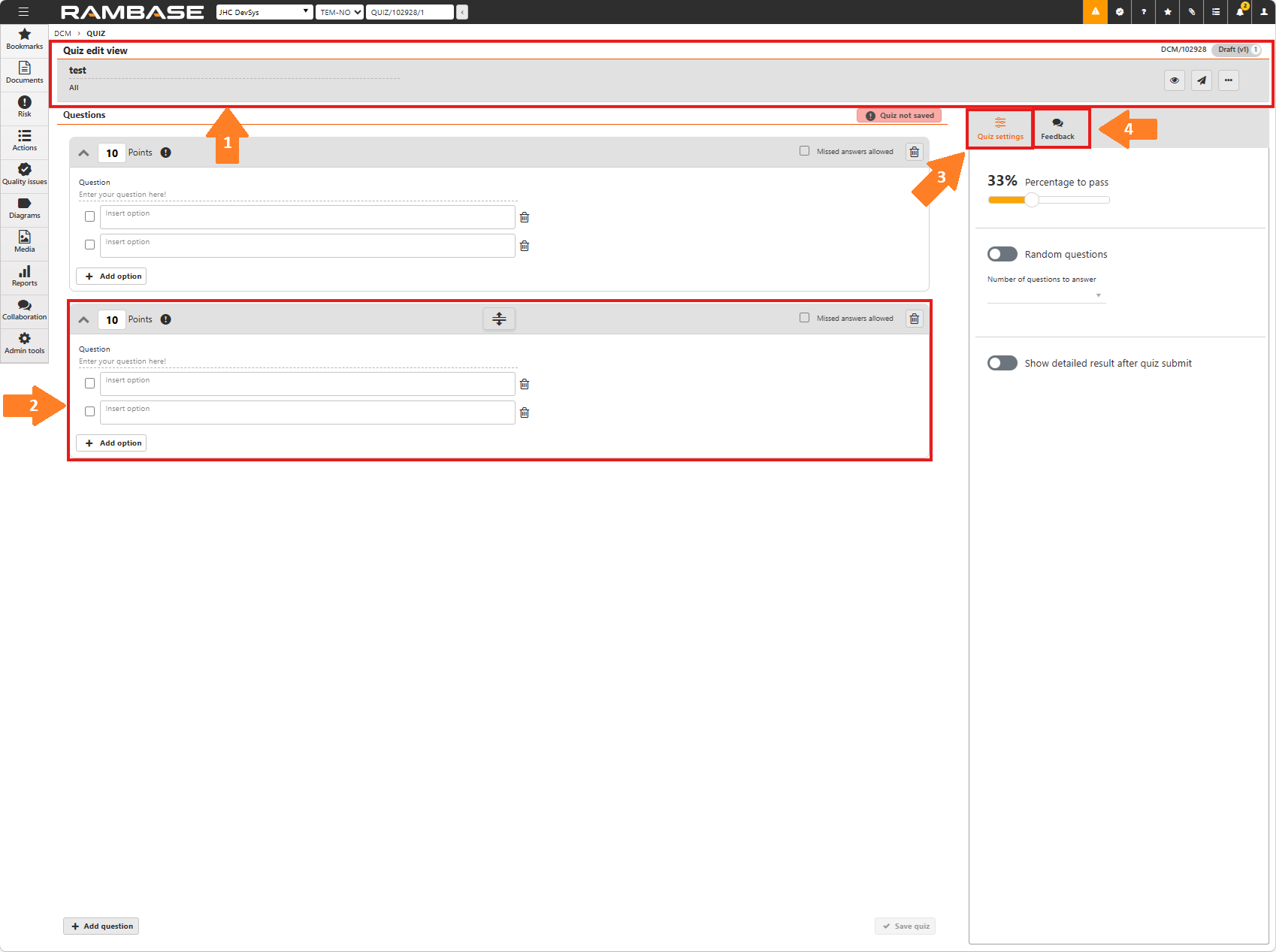
The application is divided into three main areas:
Collapse arrow
Points box
Warning box
Missed answers allowed checkbox
Delete question button
Question field
Correct answer checkbox
Insert option box
Delete option icon
Add option button
Add question button
Save question button
1. Header
- document number (ex: DCM/5814)
- Version and status
Column | Icon | Description | |||||||||||||||||||||||||||||||||||||||
|---|---|---|---|---|---|---|---|---|---|---|---|---|---|---|---|---|---|---|---|---|---|---|---|---|---|---|---|---|---|---|---|---|---|---|---|---|---|---|---|---|---|
Title | Displays the title of the quiz. | ||||||||||||||||||||||||||||||||||||||||
Open quiz preview popup button |
|
| |||||||||||||||||||||||||||||||||||||||
Edit button |
| Click to edit the quiz | |||||||||||||||||||||||||||||||||||||||
Send to button |
| Click to send the quiz to verification, approval, or back to author | |||||||||||||||||||||||||||||||||||||||
Action menu |
| Displays four options:
|


2. Questions
Buttons and fields | Icon | Description |
|---|---|---|
Collapse arrow |
| Click to hide the content of the question. |
Drag and drop arrow |
| Hover your mouse in the header of a question. Click and hold the drag and drop arrow to shift the order (placement) of the question. |
Points box |
| Each question is assigned a point value that accumulates to the quiz's total. Each question can be worth a different amount of points. |
Warning symbol |
| The warning symbol will be displayed until you have filled in a question, answers, and selected at least one correct answer. |
Missed answers checkbox | Check this box to all for missed answers without affecting the score results. | |
Delete question button |
| Click to delete the question. |
Question field | Enter the question in the text field. | |
Correct answer checkbox | Mark the correct answer(s) by selecting the checkbox to the left of the answer field. Questions can have a single correct answer or multiple correct answers. | |
Insert option box | Enter the answer text here. | |
Delete option icon |
| Click to delete the answer option. |
Add option button | Click to add more answer options. | |
Add question | Click to add more questions to the quiz. | |
Save quiz button | Click to save the changes made. |


3. Quiz settings
Percentage to pass scale
Use the sliding scale to set the percentage required to pass the quiz. The percentage to pass determines how many points the quiz taker needs in order to pass.
Random questions option
A quiz can consist of many questions but you might not want all the questions, or the same questions, included for each quiz taker. Turn on the Random questions option for a random assortment of questions to be used in the quiz.
Show detailed result after quiz submit option
Toggle on the Show detailed result after quiz submit option to allow the user to see a detailed overview of their results after the quiz. This means the chosen answers will be shown and marked as either right or wrong.
4. Feedback
To read more about the feedback process in RamBase QMS, click here.